Example rules
Use these examples as starting points for your own category rules. For the complete list of options, see Available fields and conditions.
Create a Sale category
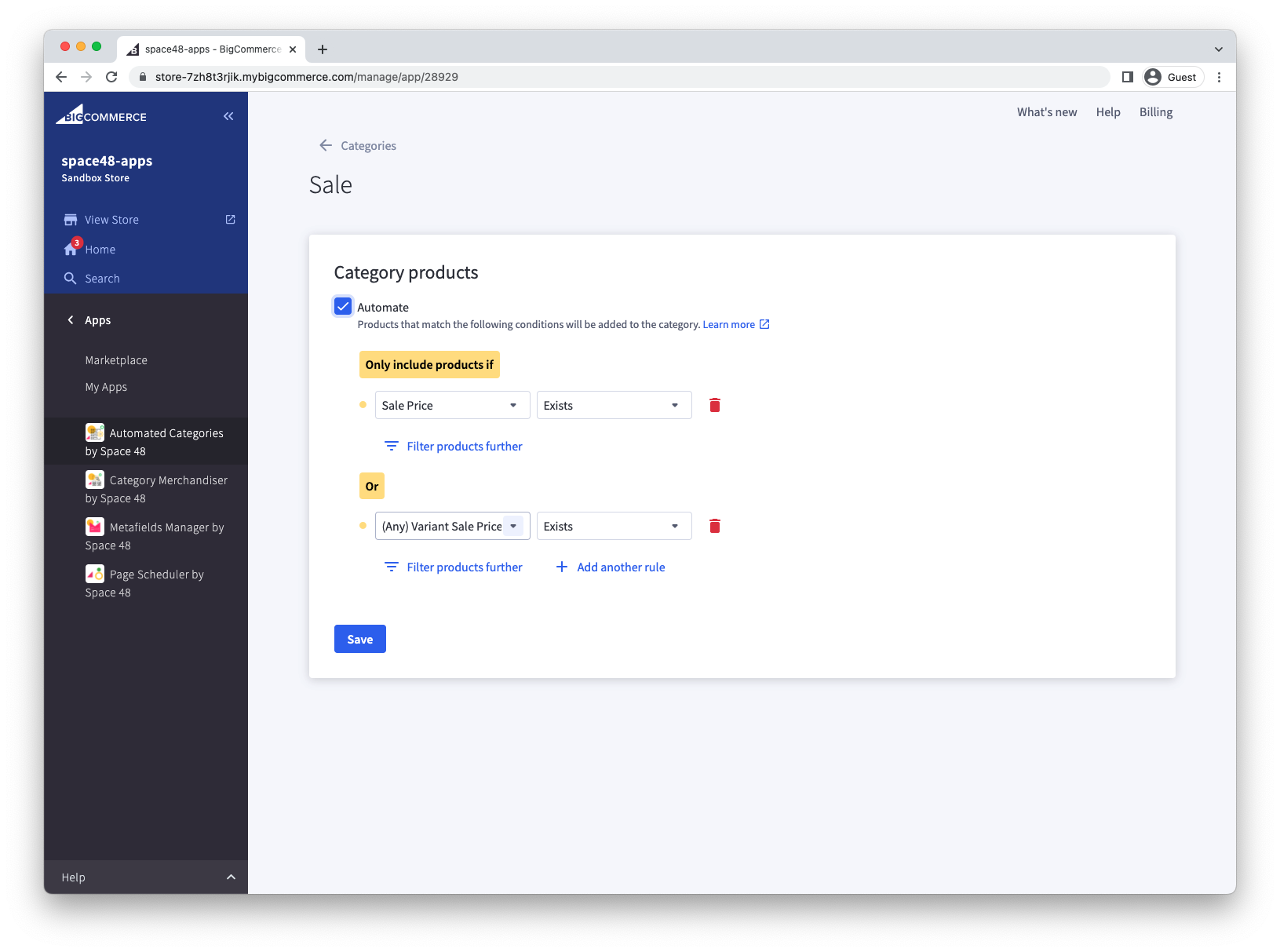
To include every product with a sale price, check for sale prices at both the product and variant levels:
- Sale Price — Exists
- (Any) Variant Sale Price — Exists
Join the two conditions with OR, so a product only needs to match one of them.
Create a New In category
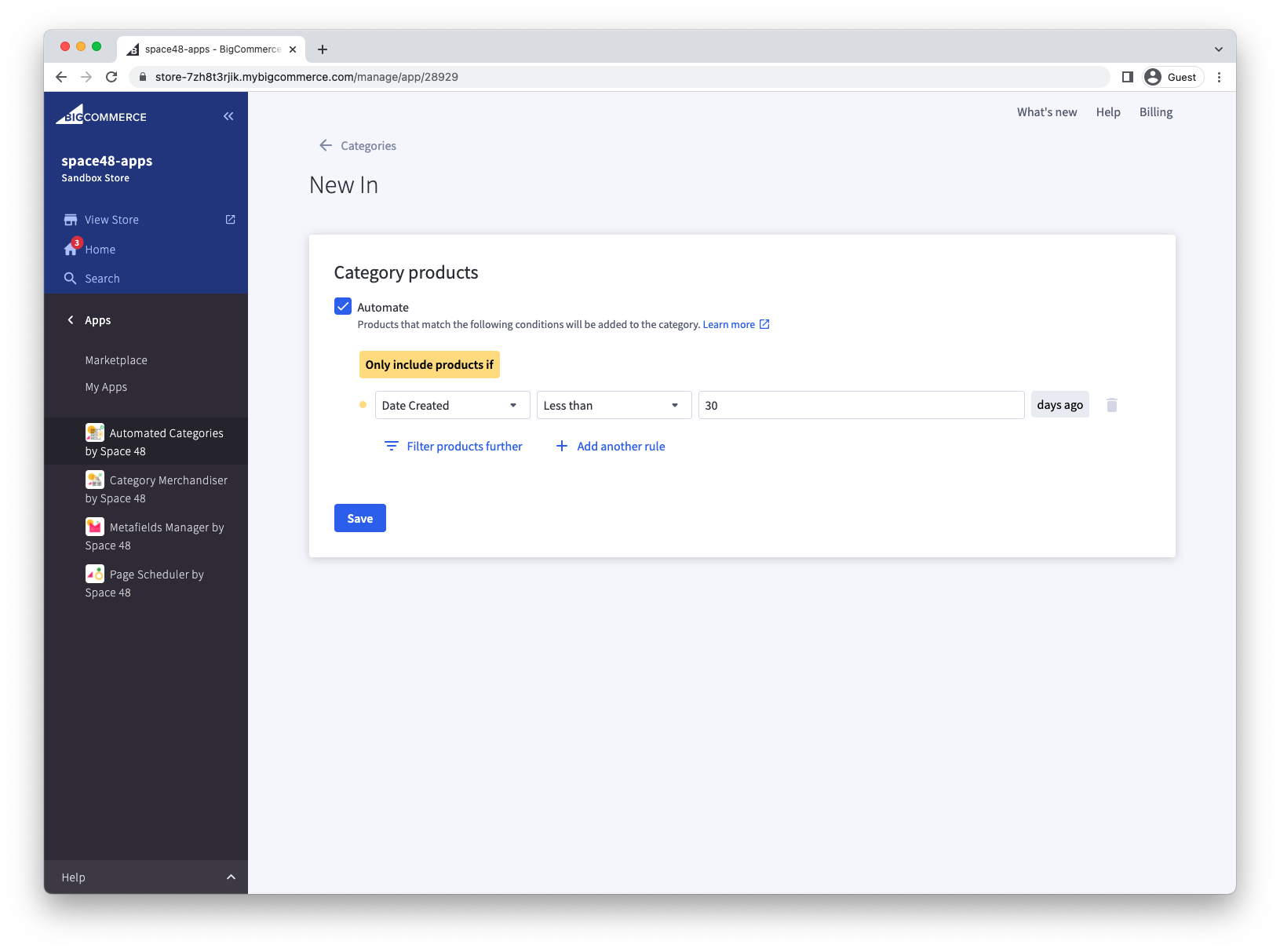
Choose the approach that matches how you define a new product:
- Date Created — Less than X days ago: Products leave the category automatically when they become older than X days.
- Date Created — On or after a specific date: Products created from that date onwards remain in the category.
- ID — Greater than a specific product ID: Products with a higher ID are considered new.
Create a Pushchairs category from SKU values
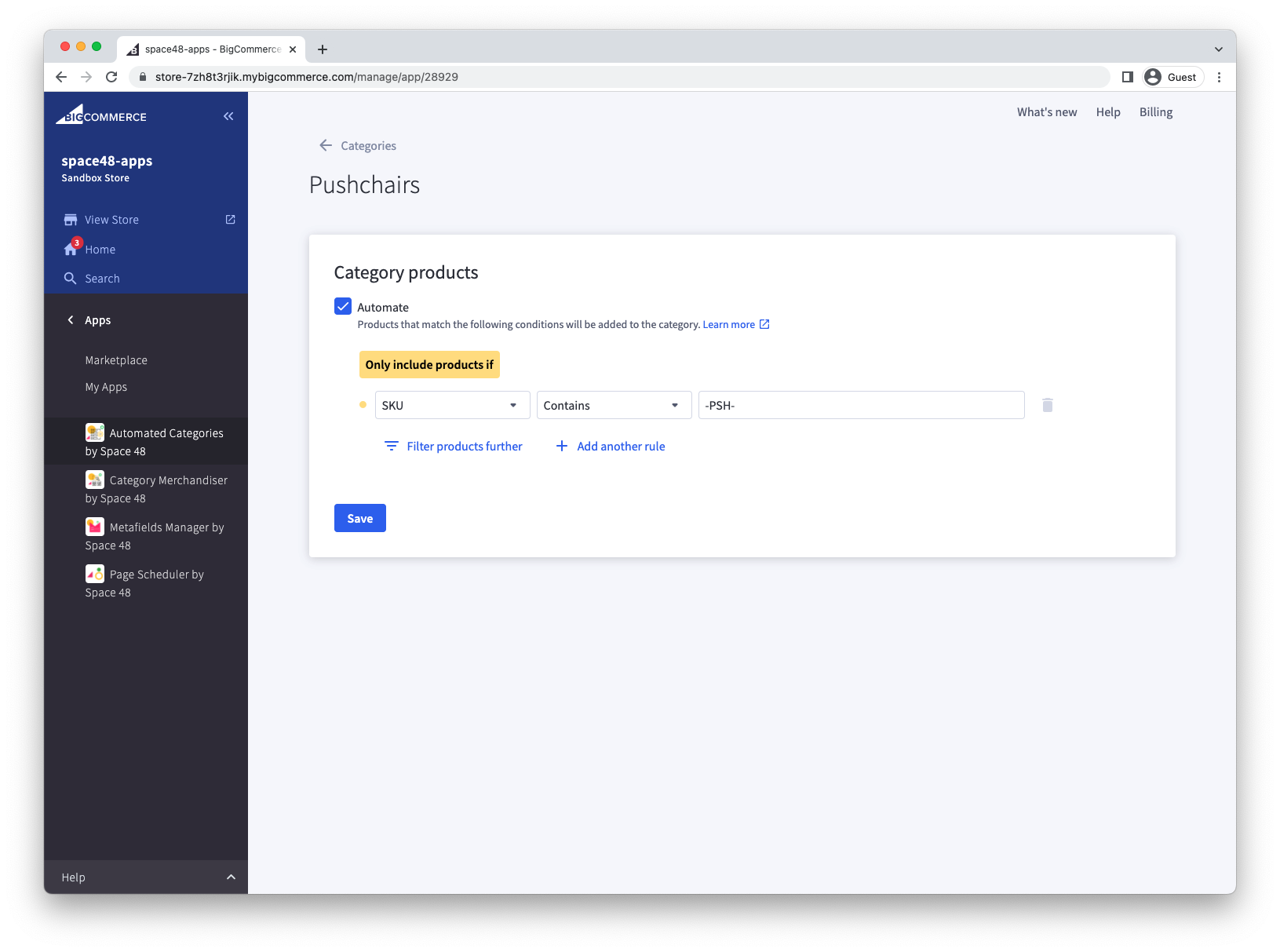
If your product catalogue uses a consistent SKU format, match a meaningful part of the SKU. For example, if every pushchair SKU includes PSH, use SKU — Contains — PSH.
You can also use Starts with or Ends with, and add an exclusion condition when necessary.
Create a brand category
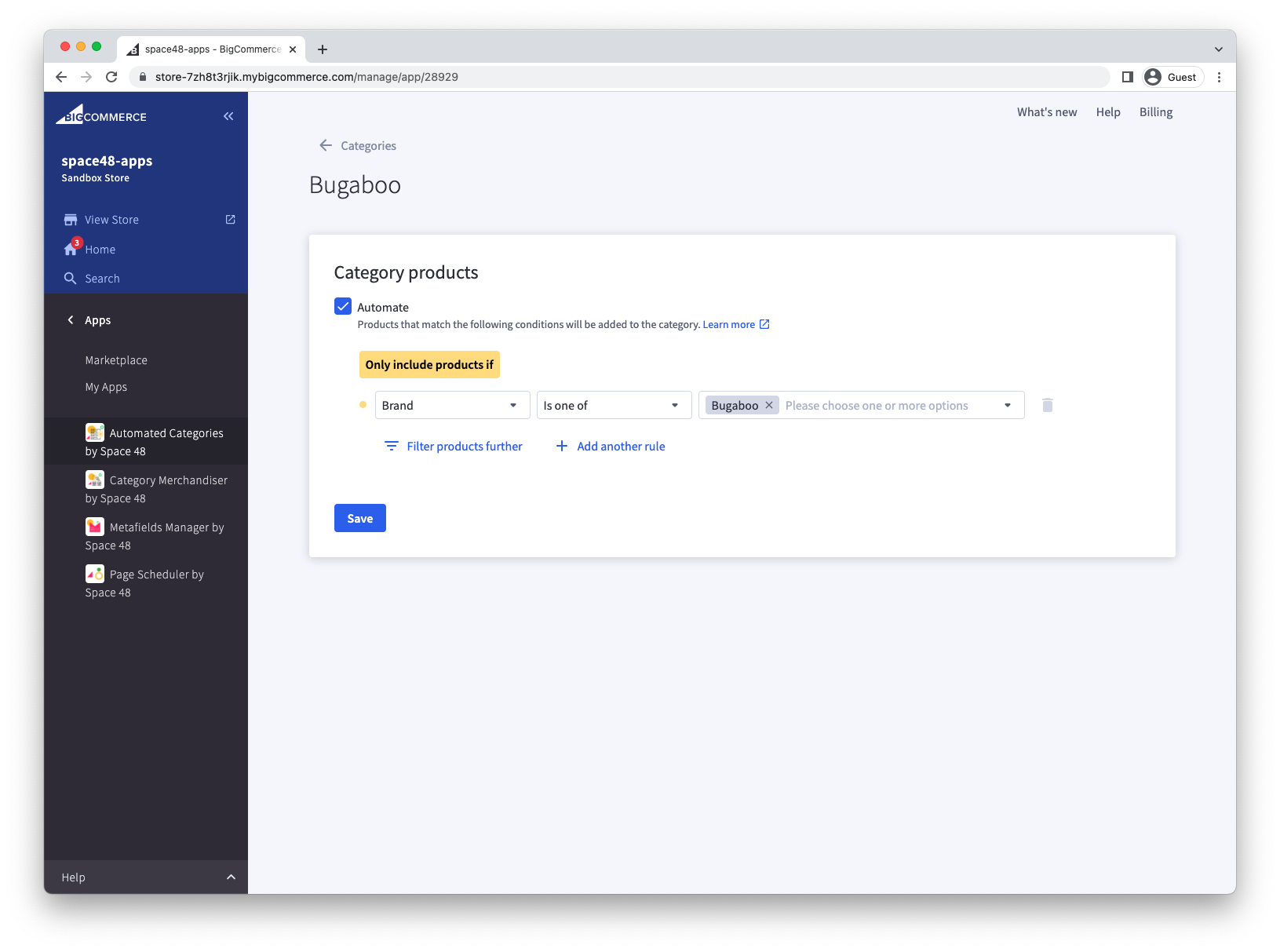
BigCommerce provides brand listing pages, but a category can offer more flexibility. Use Brand with the appropriate matching condition to assign products from a particular brand.
Create a Jewellery category from search keywords
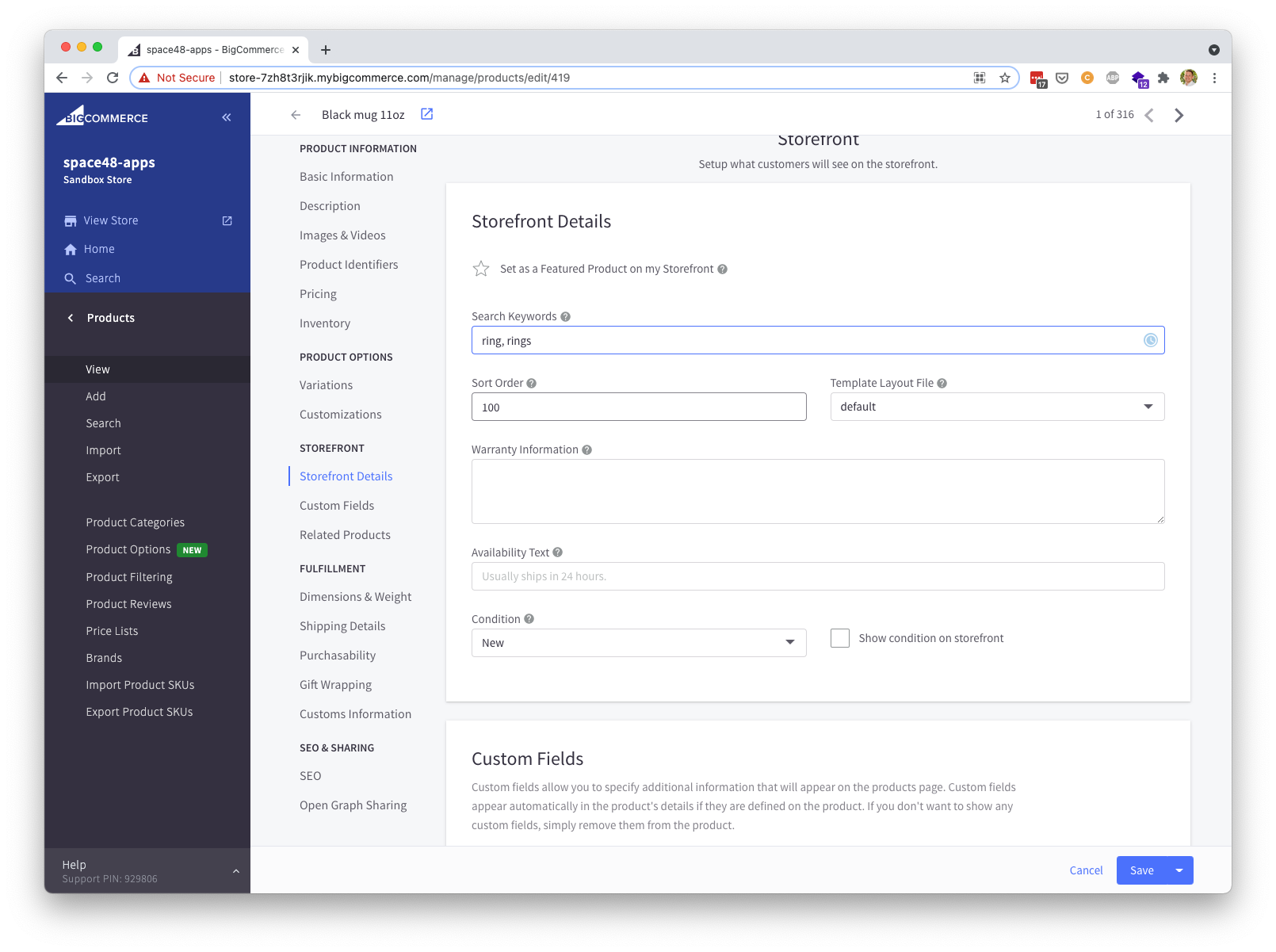
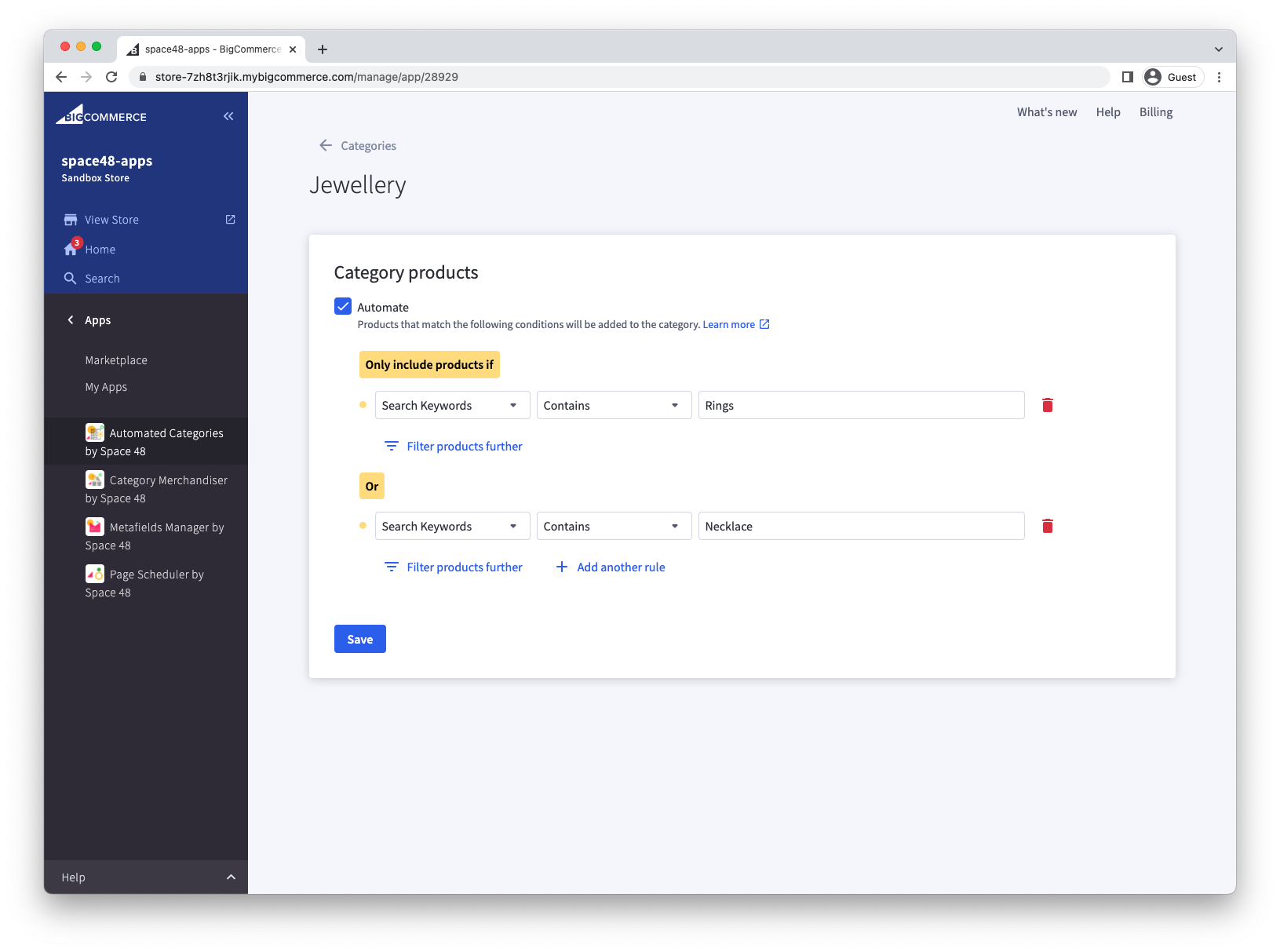
If you already use search keywords to organise products, match those values in a category rule. This example includes products whose Search Keywords contain Rings or Necklace.
Create a category from a custom field
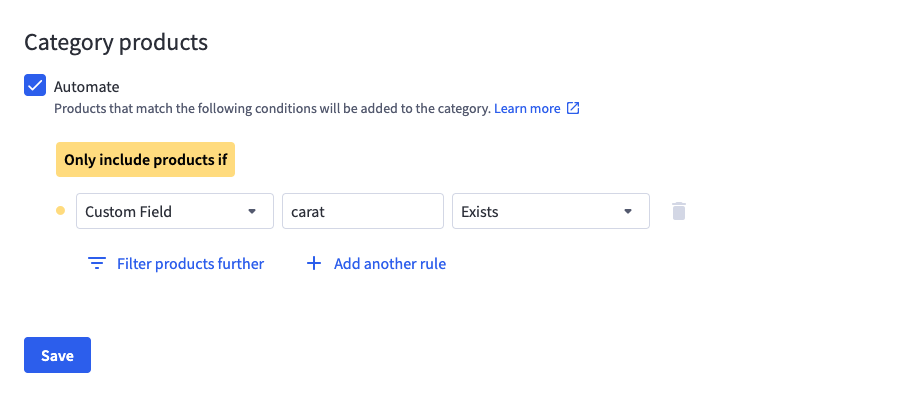
For Custom Field conditions, enter the custom field's name and select the operator. Add a value as well when the operator requires one. For example, you can check whether a carat custom field exists.
Changing a custom field does not trigger immediate category reprocessing. The scheduled process will pick up the change, or you can force product reprocessing.
Create an in-stock or out-of-stock category
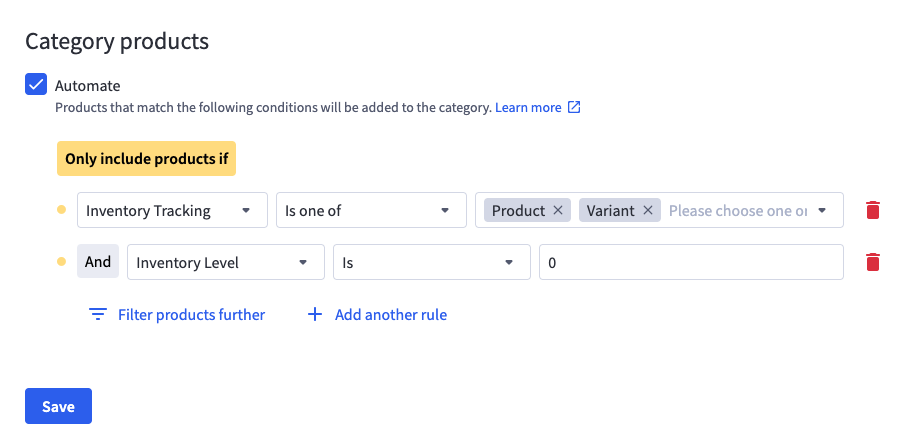
Use two conditions to include products based on stock:
- Inventory Tracking: Check that tracking is set to Product or Variant.
- Inventory Level: Compare the stock level with
0. Use the operator that matches whether you want in-stock or out-of-stock products.
The example below creates an out-of-stock category.