Quick start
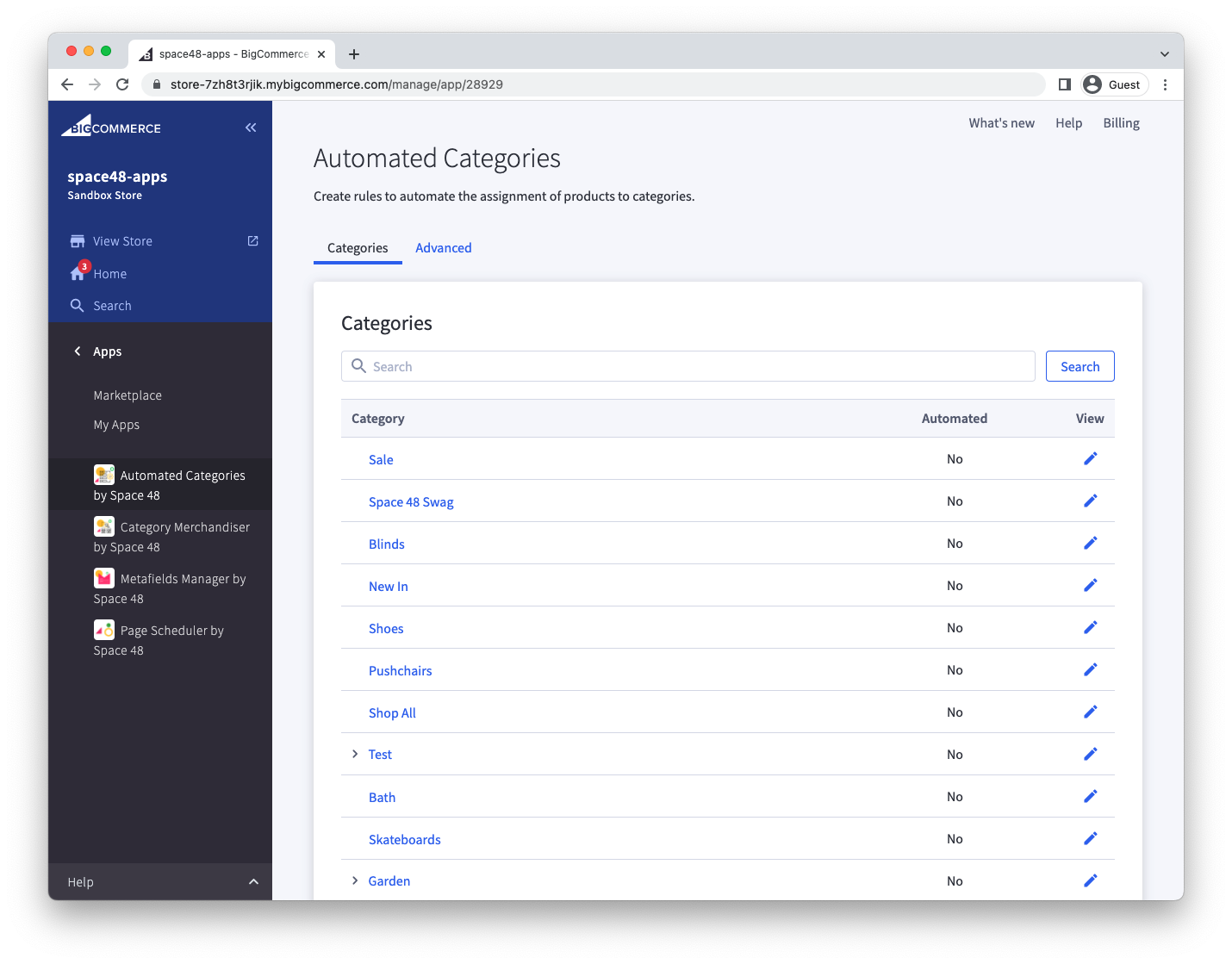
1. Choose a category
Open the app and choose a category from your store's category list.
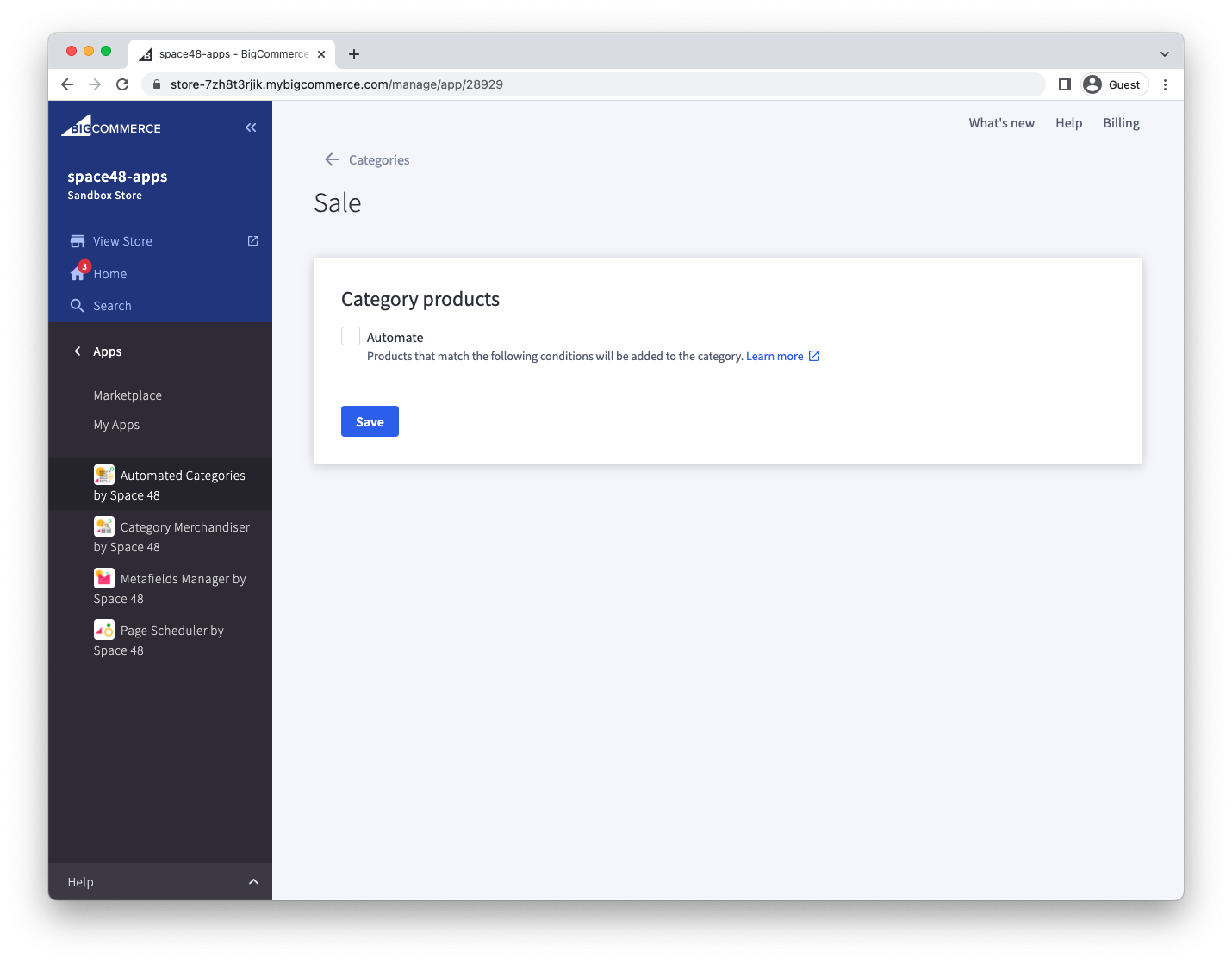
2. Enable automation
Select Automate to assign products with a rule instead of managing the category's products manually in BigCommerce.
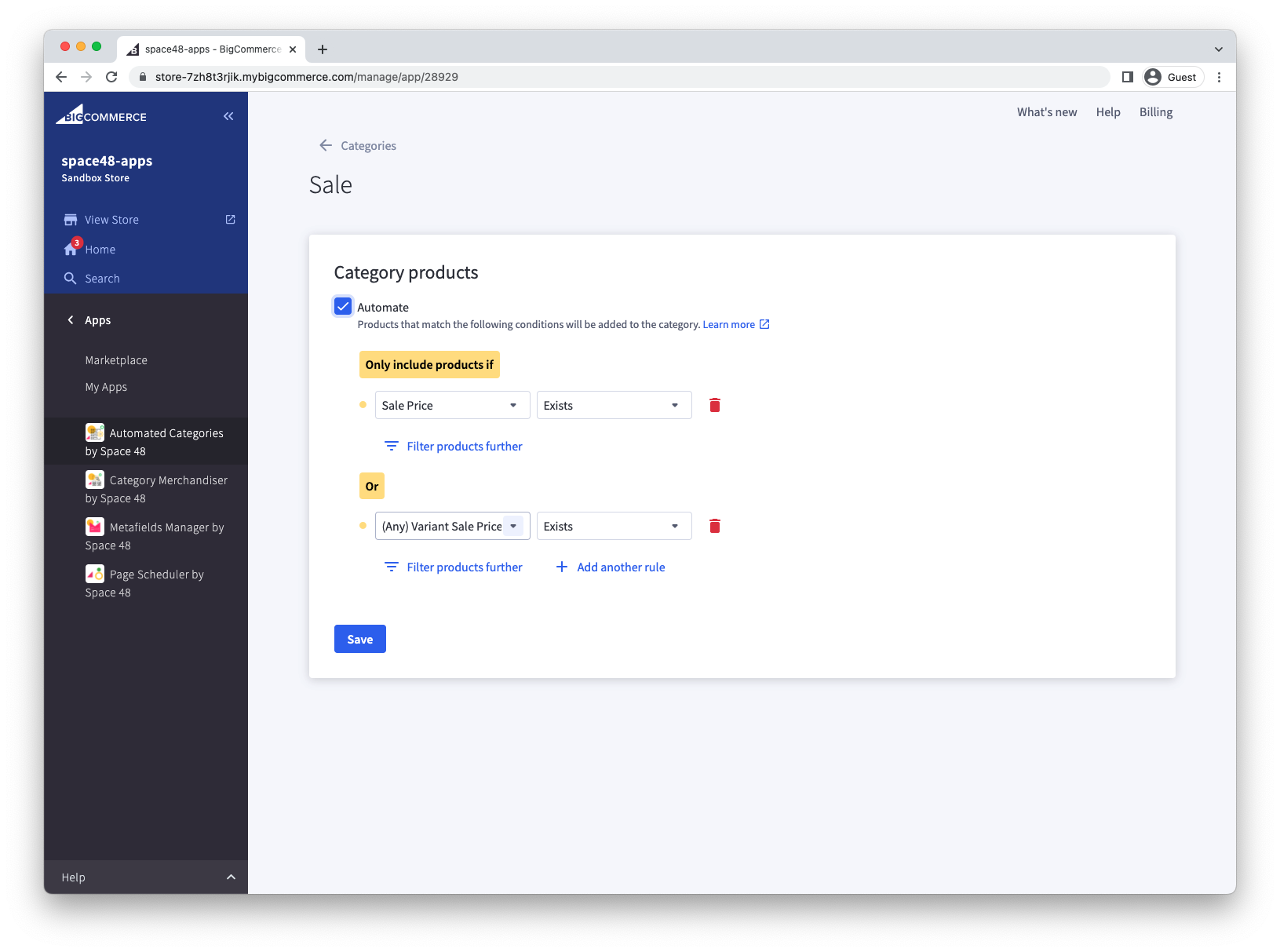
3. Configure the rule
Add the conditions a product must meet to be assigned to the category. Each condition has:
- Field: The product field to evaluate, such as SKU or Sale Price.
- Operator: How to compare the field, such as Contains or Exists.
- Value: The value to compare with the product field, when the operator requires one.
This example adds products that have a sale price at either the product or variant level:
See Available fields and conditions for all supported options.
4. Save and process the catalogue
Save the category to start evaluating your products against the rule. Processing runs in the background and may take from a few seconds to a few minutes, depending on the size of your catalogue.
The success message confirms that processing has started. Check the category after processing completes to confirm that the expected products were assigned.