Install guide
Automated Categories supports single-click installation, with no custom code required.
1. Start the installation
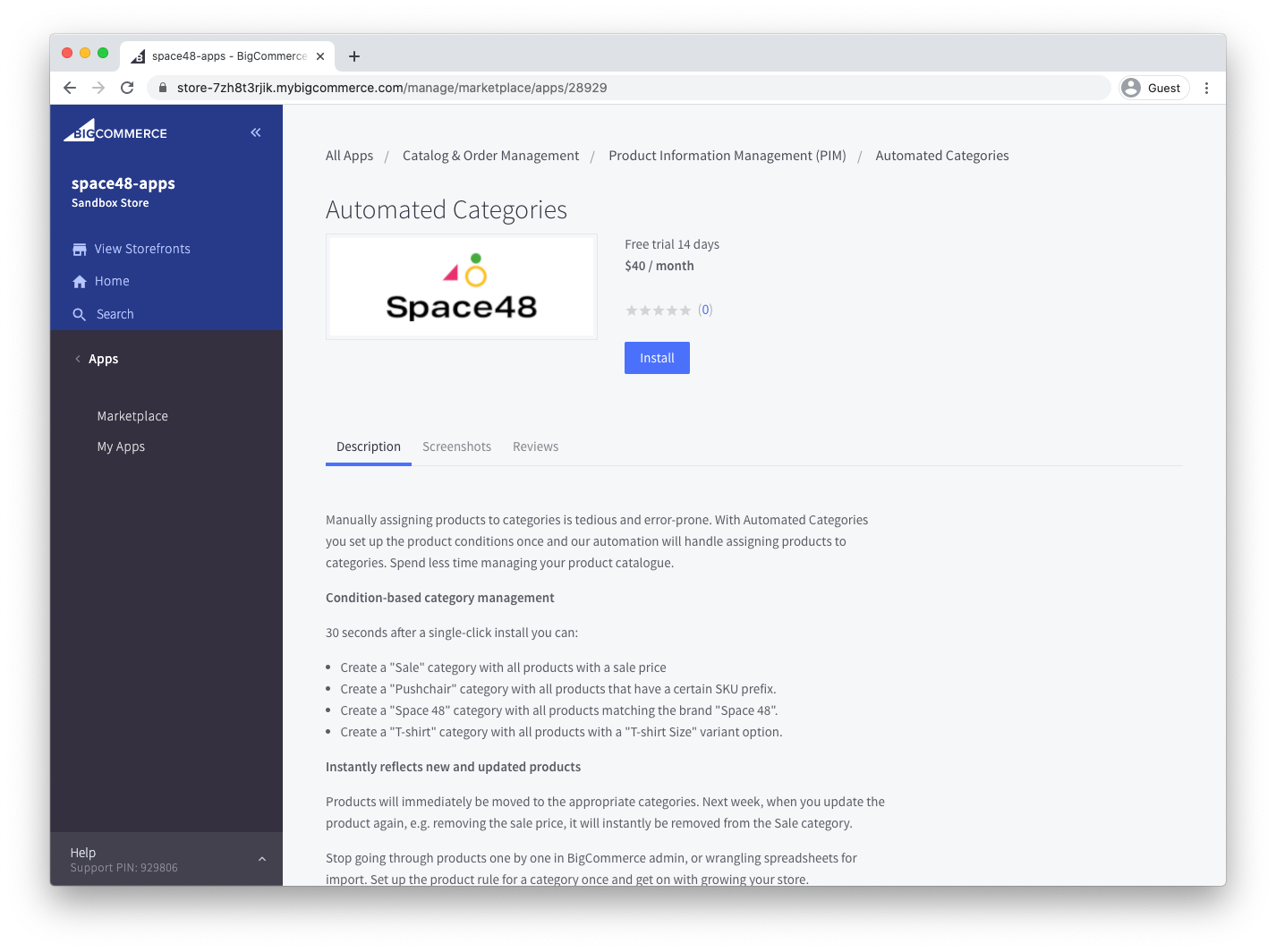
Find Automated Categories in the BigCommerce marketplace and select Get App to open it in your store. When you are ready, select Install.
2. Review permissions
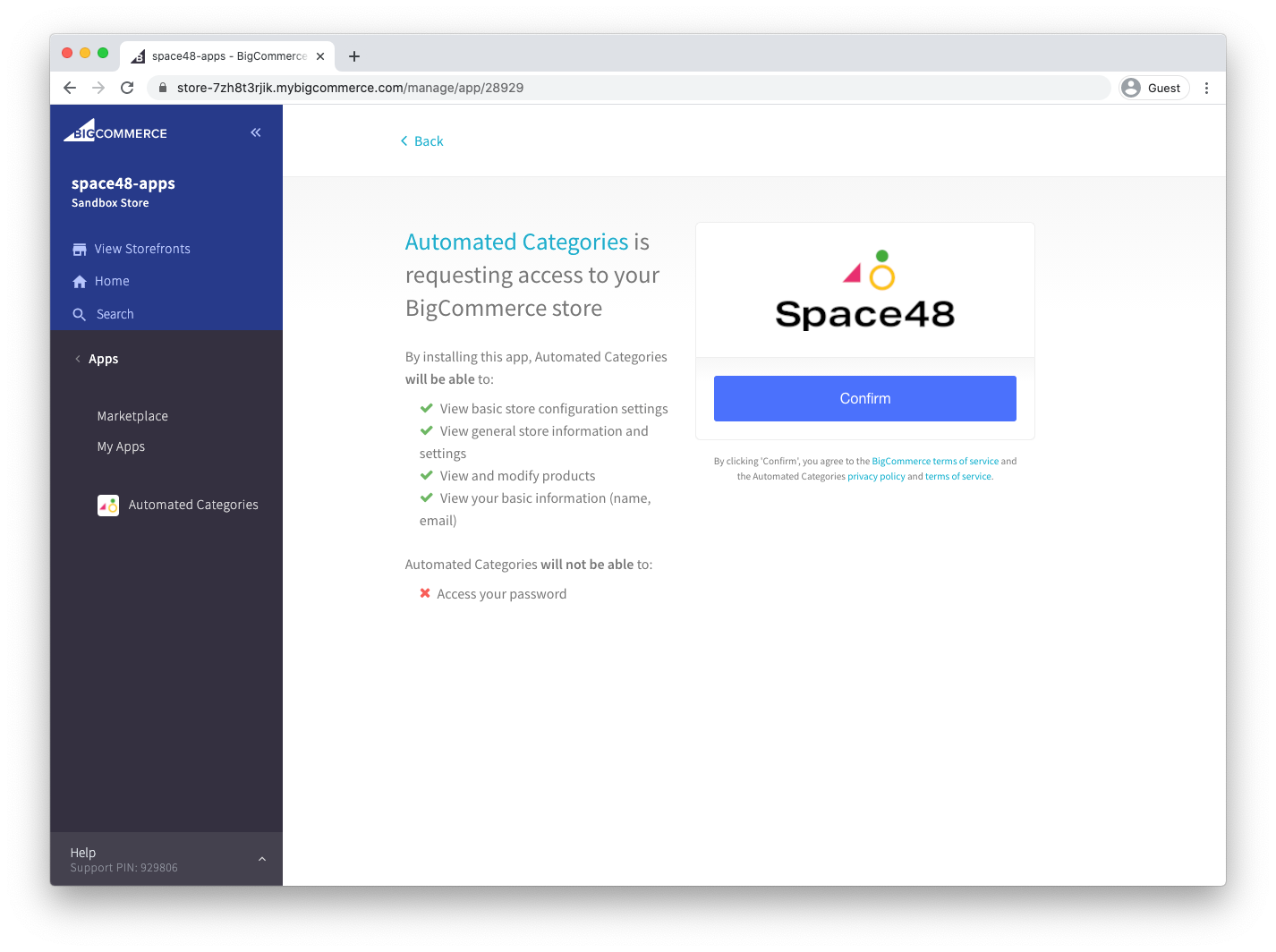
Review the permissions you are granting. The app asks only for the access it needs, including store information and products. Then select Confirm.
3. Create your first rule
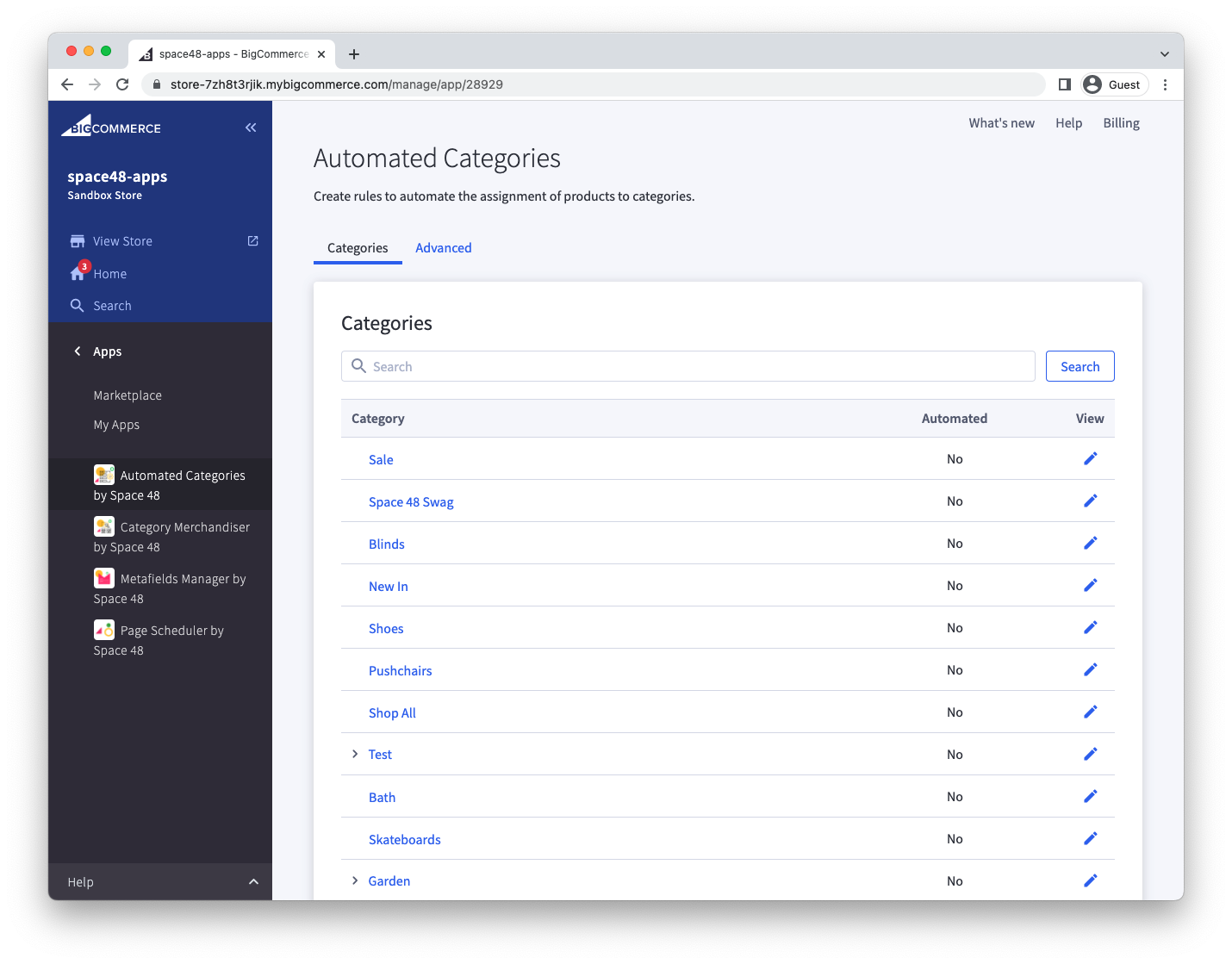
After installation, the app displays your store's categories. Follow the quick start guide to create your first category rule.
Troubleshooting access problems
Symptom: The app logs you out immediately or does not open inside the BigCommerce admin.
Likely cause: You are using Safari or a private browsing window, which BigCommerce does not support for embedded apps.
Resolution: Open the app in a regular, non-private window in Google Chrome, Mozilla Firefox, or Microsoft Edge.